If you’ve spent any time with ComfyUI, you know it’s incredibly powerful for AI image generation. But let’s be honest – the default look is pretty basic. That’s where Niutonian Themes comes in.
What Does It Do?
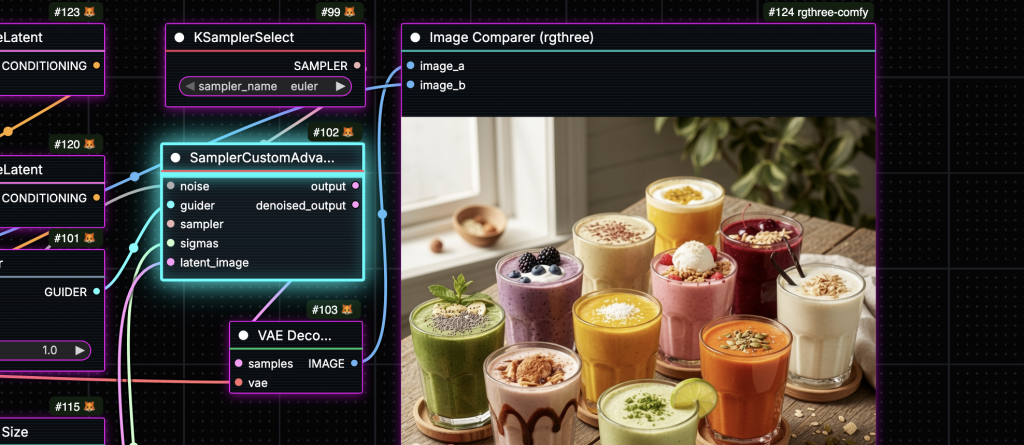
Niutonian Themes is a custom node pack that gives ComfyUI a visual makeover. You get 10 different themes ranging from clean and minimal to full-on cyberpunk. The best part? Everything still works exactly the same. All your nodes, all your extensions, nothing breaks.
The Good Stuff
10 Different Looks
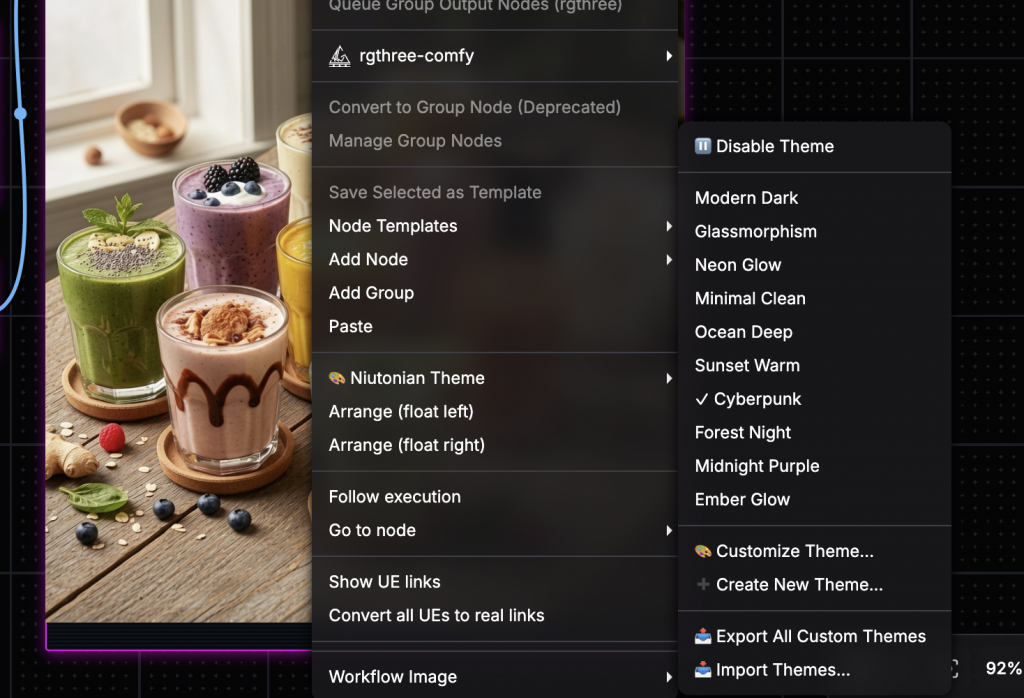
Pick from Modern Dark, Glassmorphism, Neon Glow, Minimal Clean, Ocean Deep, Sunset Warm, Cyberpunk, Forest Night, Midnight Purple, and Ember Glow. Each one has its own vibe and color scheme.
Theme Individual Nodes
Here’s something cool – you can apply different themes to specific nodes. Maybe you want your input nodes in Ocean Deep and your processing nodes in Ember Glow. You can do that, and it saves with your workflow so you don’t have to set it up every time.
Build Your Own Themes
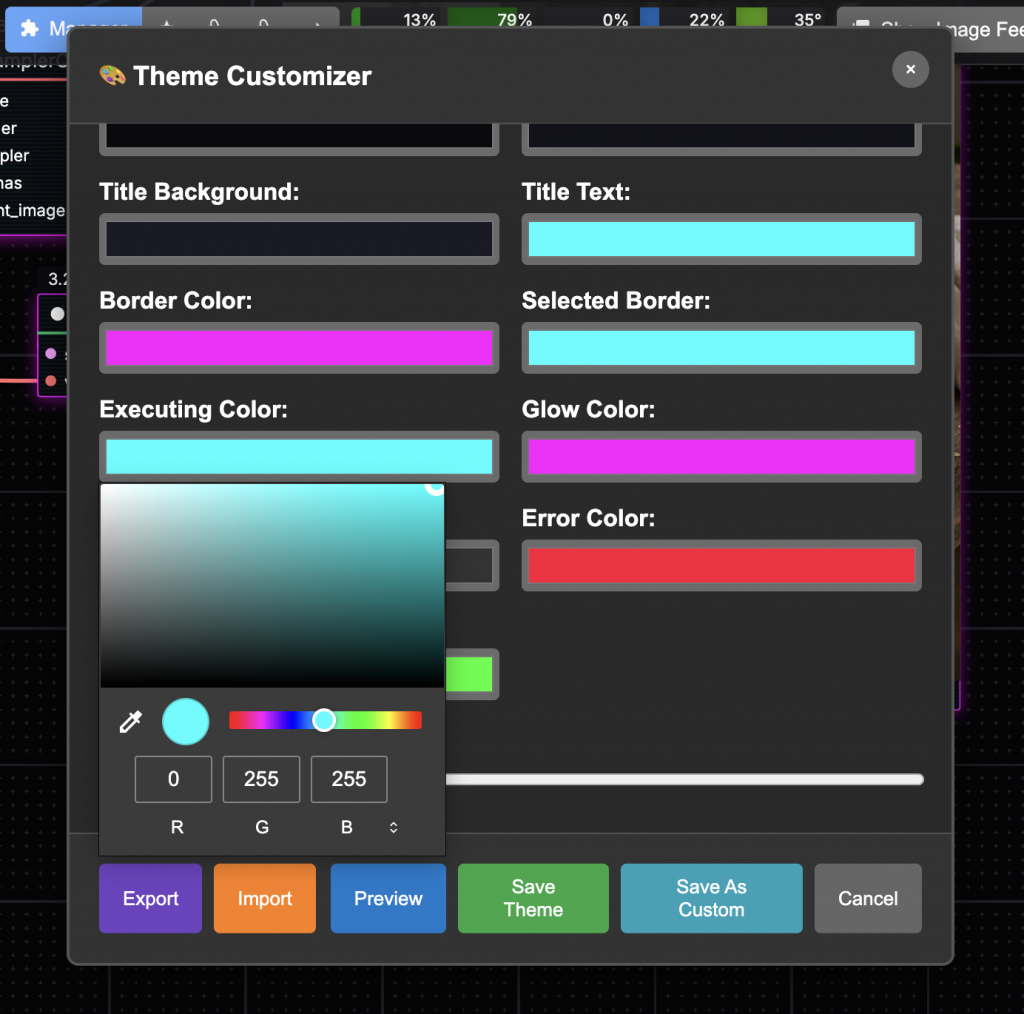
There’s a visual editor built right in. Tweak colors, adjust shadows, play with glow effects, all with live preview. When you’re happy with it, export it as a JSON file. You can share it with others or just keep it as a backup.
Here’s What They Look Like
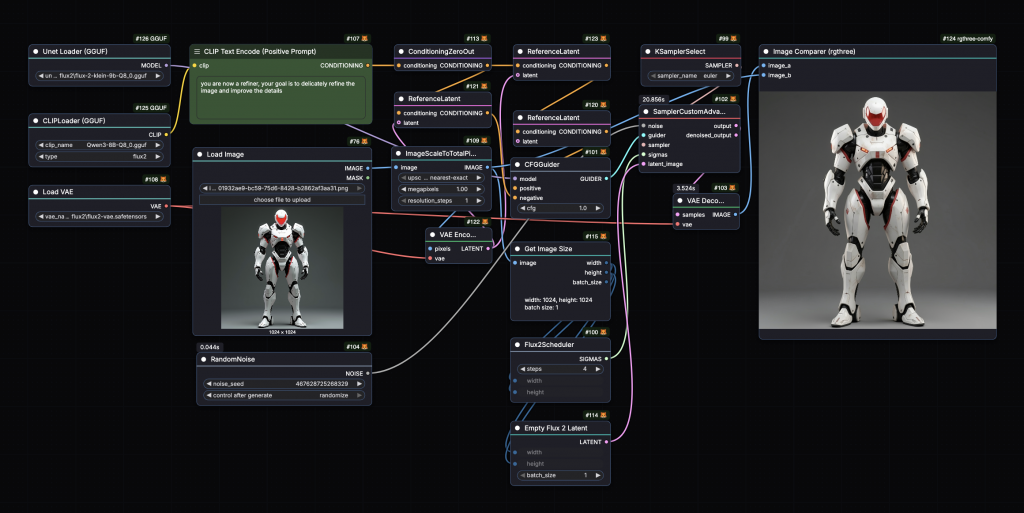
Modern Dark – Clean professional look with blue highlights
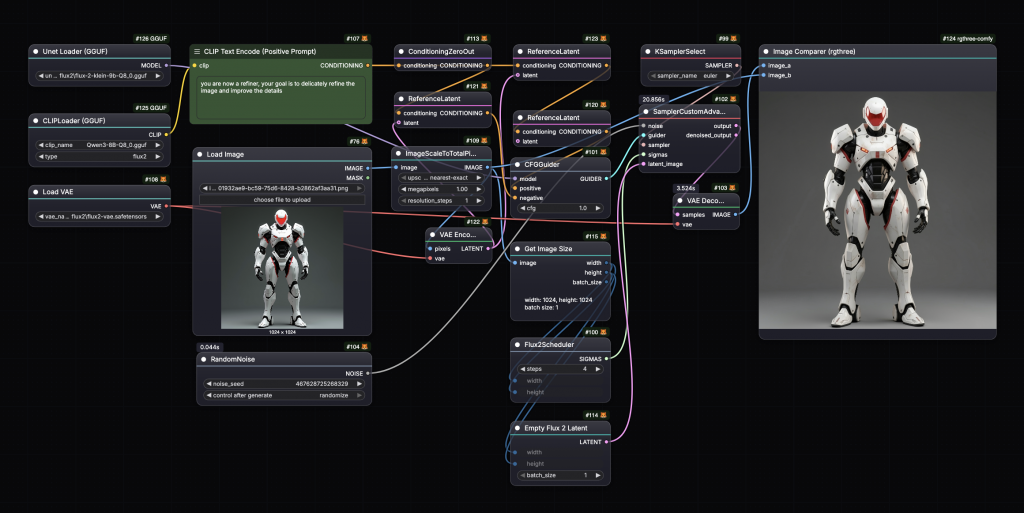
Glassmorphism – That frosted glass effect everyone’s into
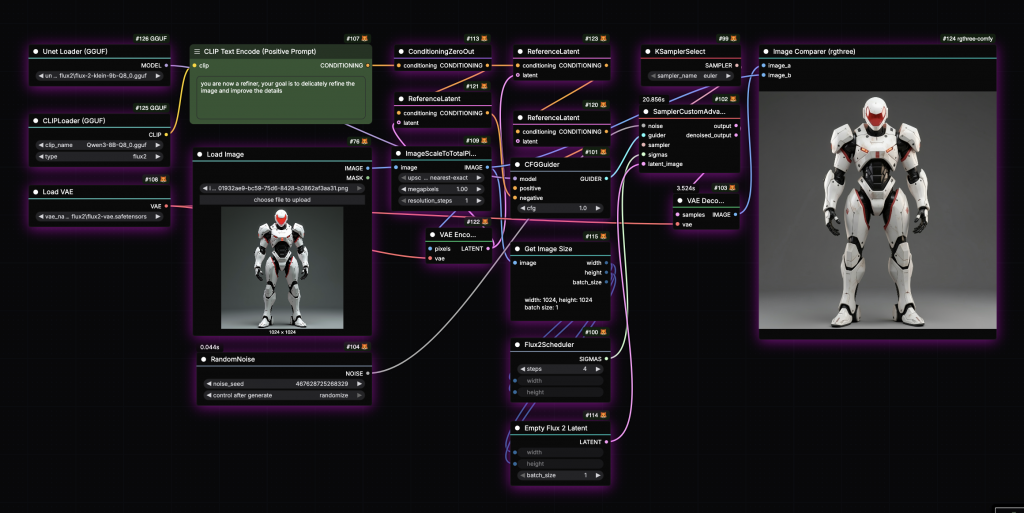
Neon Glow – For when you want that cyberpunk aesthetic
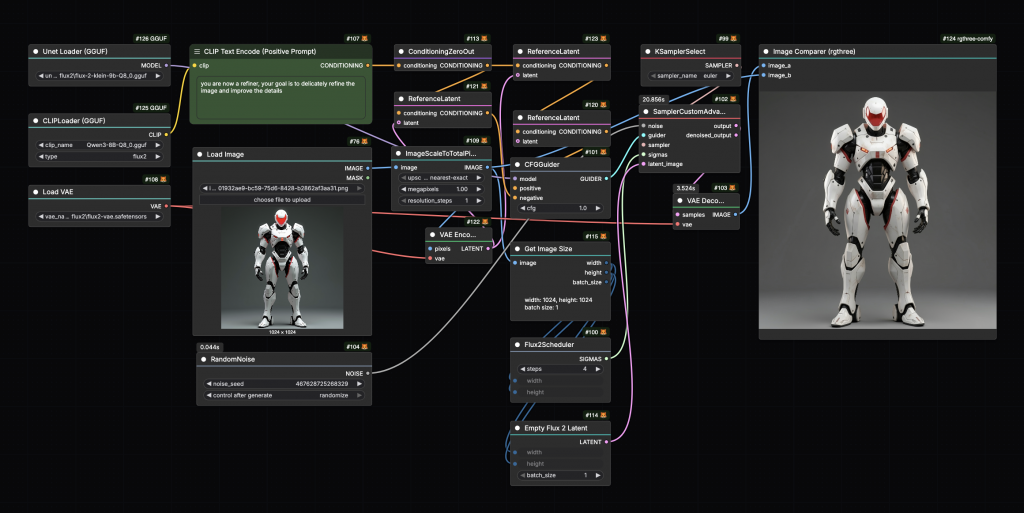
Minimal Clean – Nothing fancy, just clean and simple
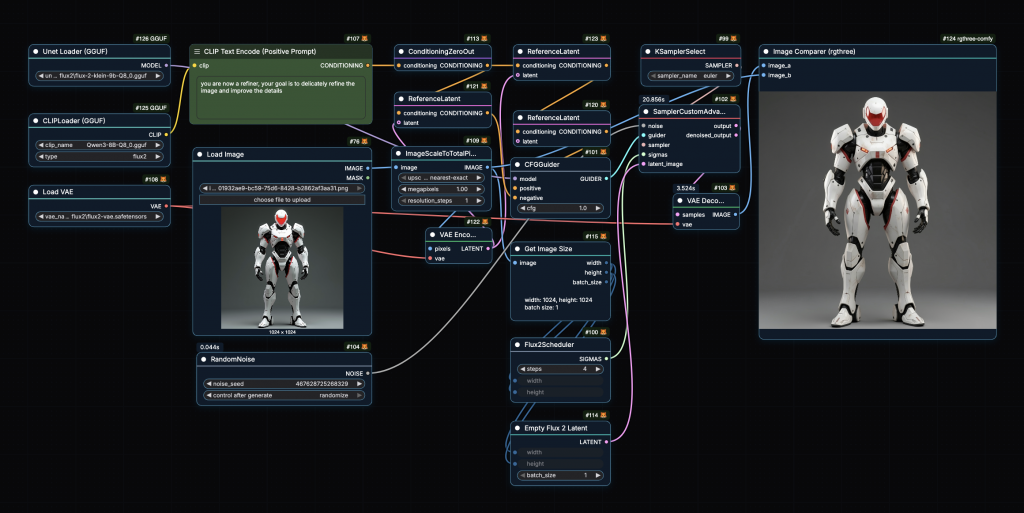
Ocean Deep – Easy on the eyes with blue tones
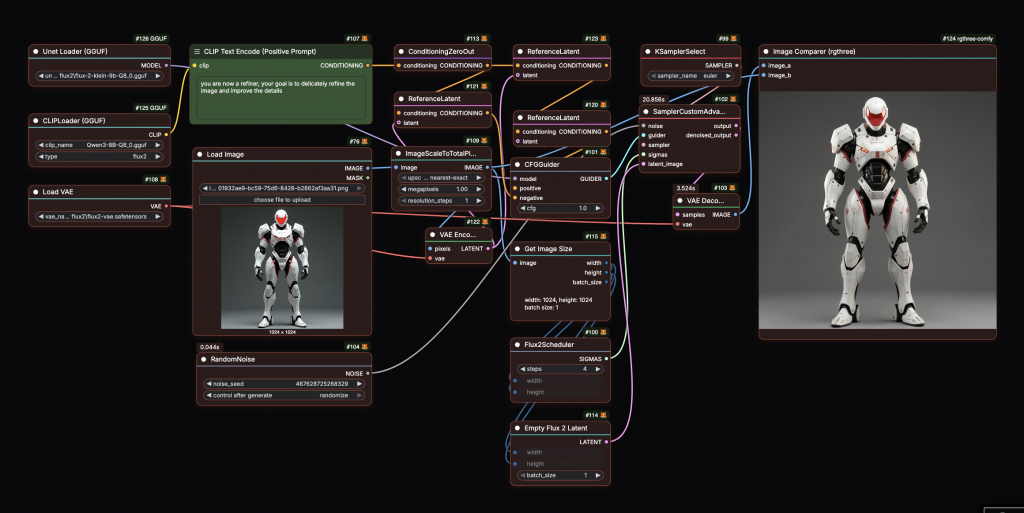
Sunset Warm – Warm oranges and reds
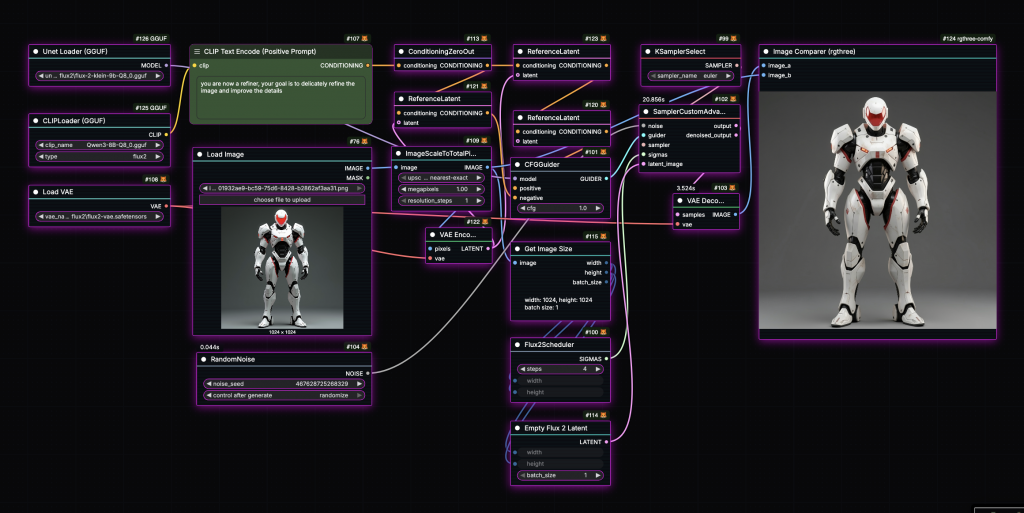
Cyberpunk – Scanlines and all the glow effects
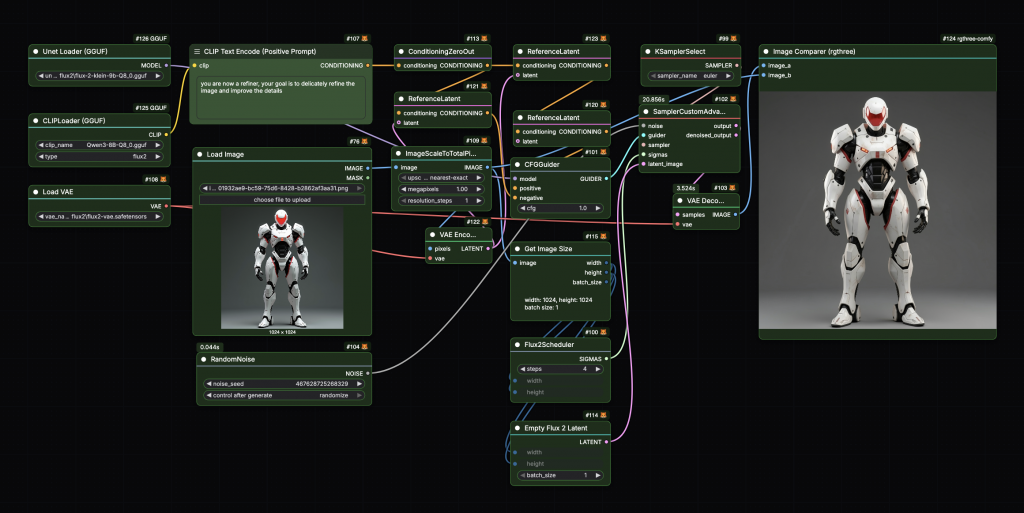
Forest Night – Green tones for a natural feel
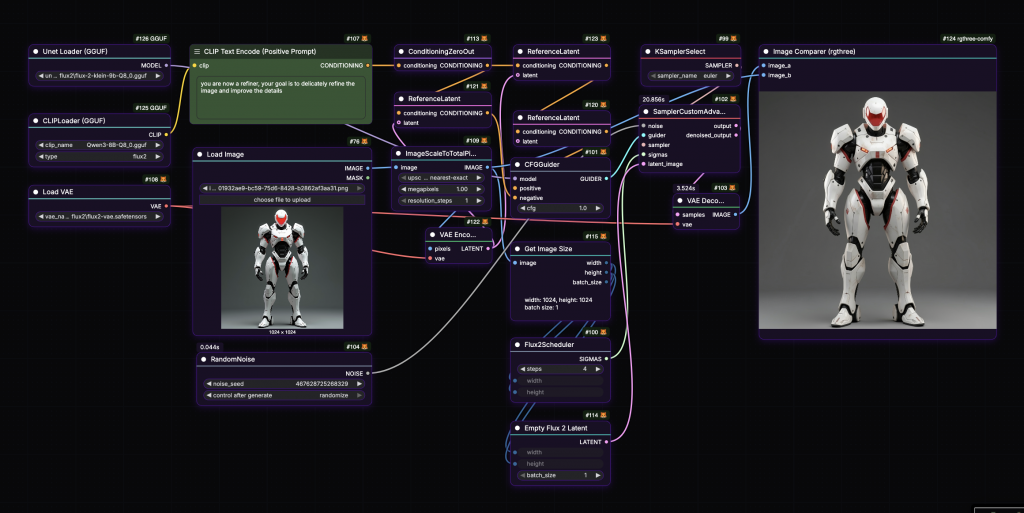
Midnight Purple – Deep purple with subtle glow
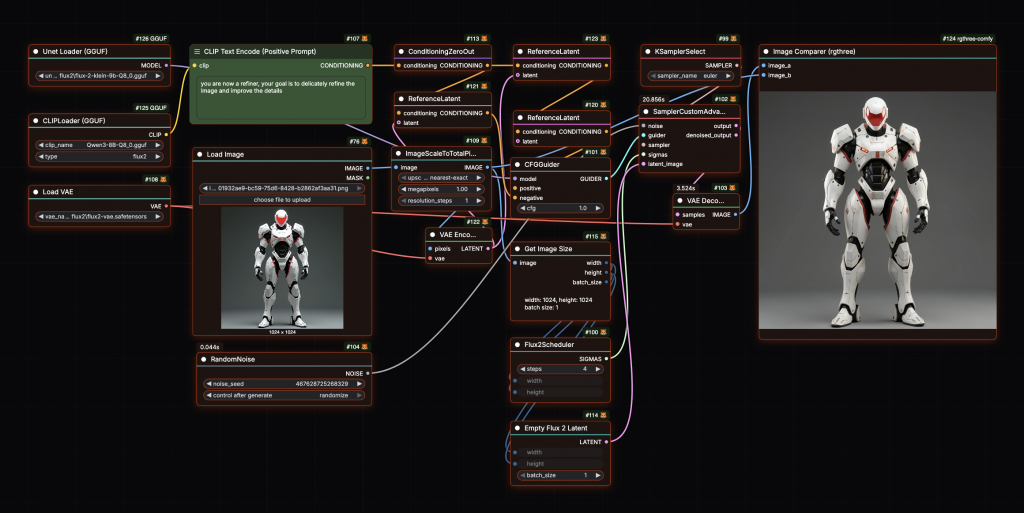
Ember Glow – Warm fire-inspired colors
Actually Useful Features
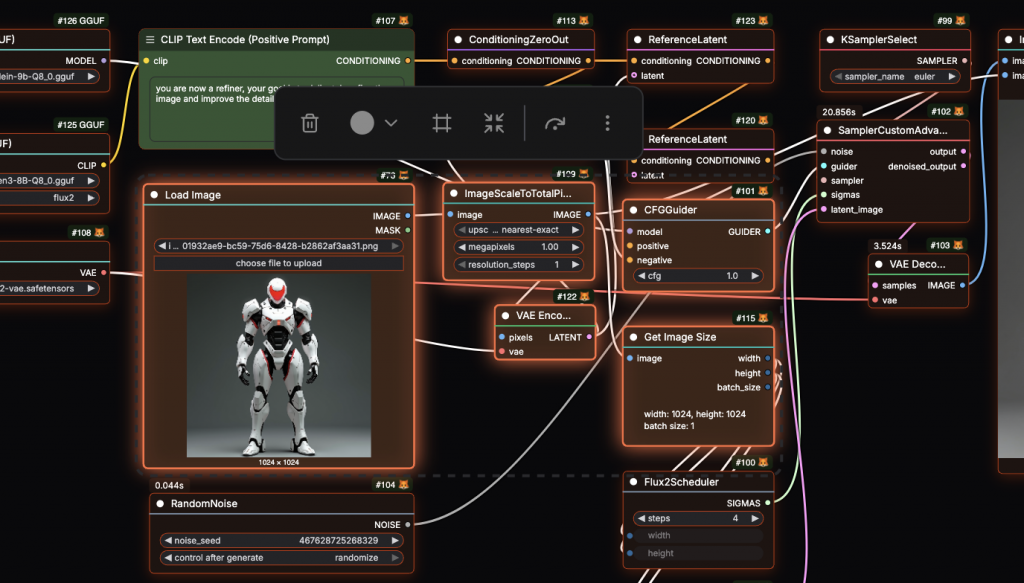
When nodes are running, they glow in colors that match your theme. Progress bars on nodes like KSampler get themed too. Bypassed nodes and error nodes have their own distinct colors so you can spot issues quickly. It’s not just pretty – it actually helps you see what’s happening in your workflow.
Getting It Set Up
There are three ways to install this:
Through ComfyUI Manager
This is the easiest. Just open ComfyUI Manager, search for “Niutonian Themes”, and hit install.

Manual Install
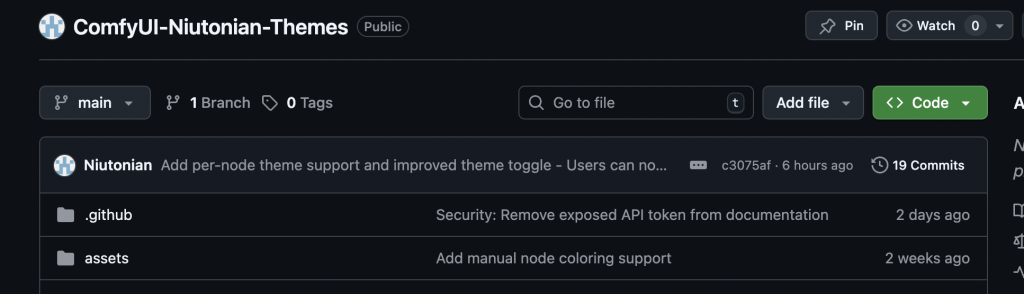
Clone the repo into your ComfyUI custom nodes folder, then restart ComfyUI. GitHub link
Download the ZIP
Grab it from the releases page, unzip it into your custom nodes folder, restart.
Using It
Once it’s installed, right-click anywhere on the canvas and you’ll see the Niutonian Theme menu. Pick a theme. That’s it. If you want to be faster about it, use Alt+1 through Alt+0 for quick switching. Alt+` turns the whole thing off if you want to go back to vanilla ComfyUI.
For per-node themes, right-click the node, go to “Node Theme”, and pick one. It’ll remember your choice when you save the workflow.
Sharing Themes
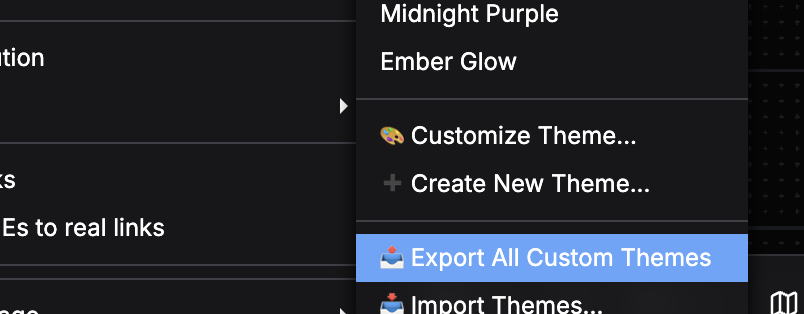
Made something you like? Export it. The system handles both single themes and collections. You can also import themes other people have made. It’s all JSON files, so it’s pretty straightforward.
How It Works
The extension doesn’t mess with ComfyUI’s core code. It patches in cleanly, which means it plays nice with everything else you have installed. Your settings save automatically, and it’s built to be lightweight so it won’t slow things down.
Try It Out
Niutonian Themes is free and open source (MIT License). You can grab it from GitHub or install it through ComfyUI Manager right now.
Whether you like things minimal or you’re all about that cyberpunk life, there’s probably a theme here that fits how you work. And if there isn’t, you can make one.
Check it out on GitHub and see if it works for you.